
Exposing Secure Tunnels
Default configuration
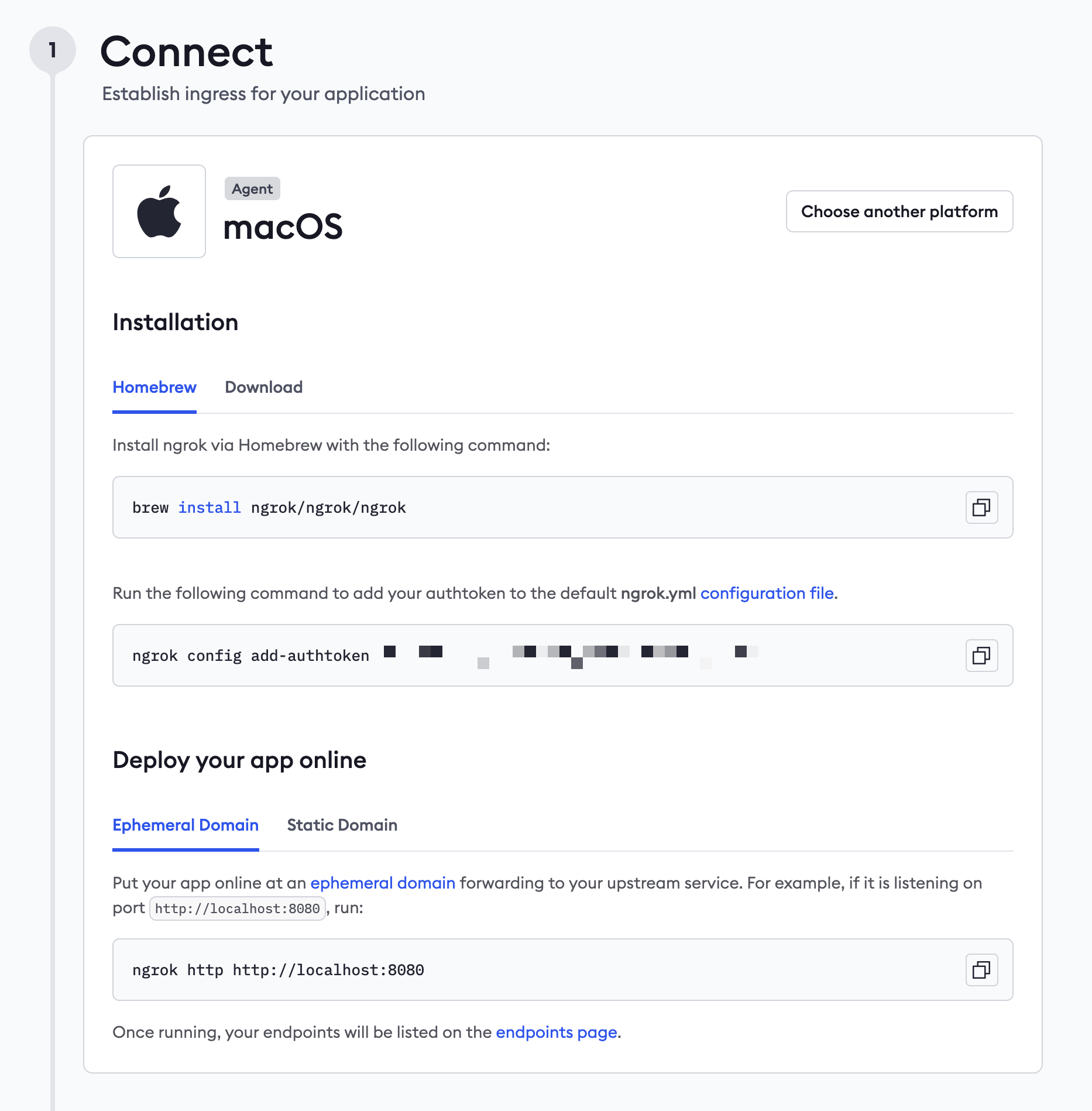
By default, Spin Pro supports using Ngrok's Free Plan to expose your services to the internet. You'll need to create an account with Ngrok and install it to your machine following their instructions.
Using Ngrok
Once Ngrok is installed and authenticated, you can start a very basic tunnel by running the following command in your terminal:
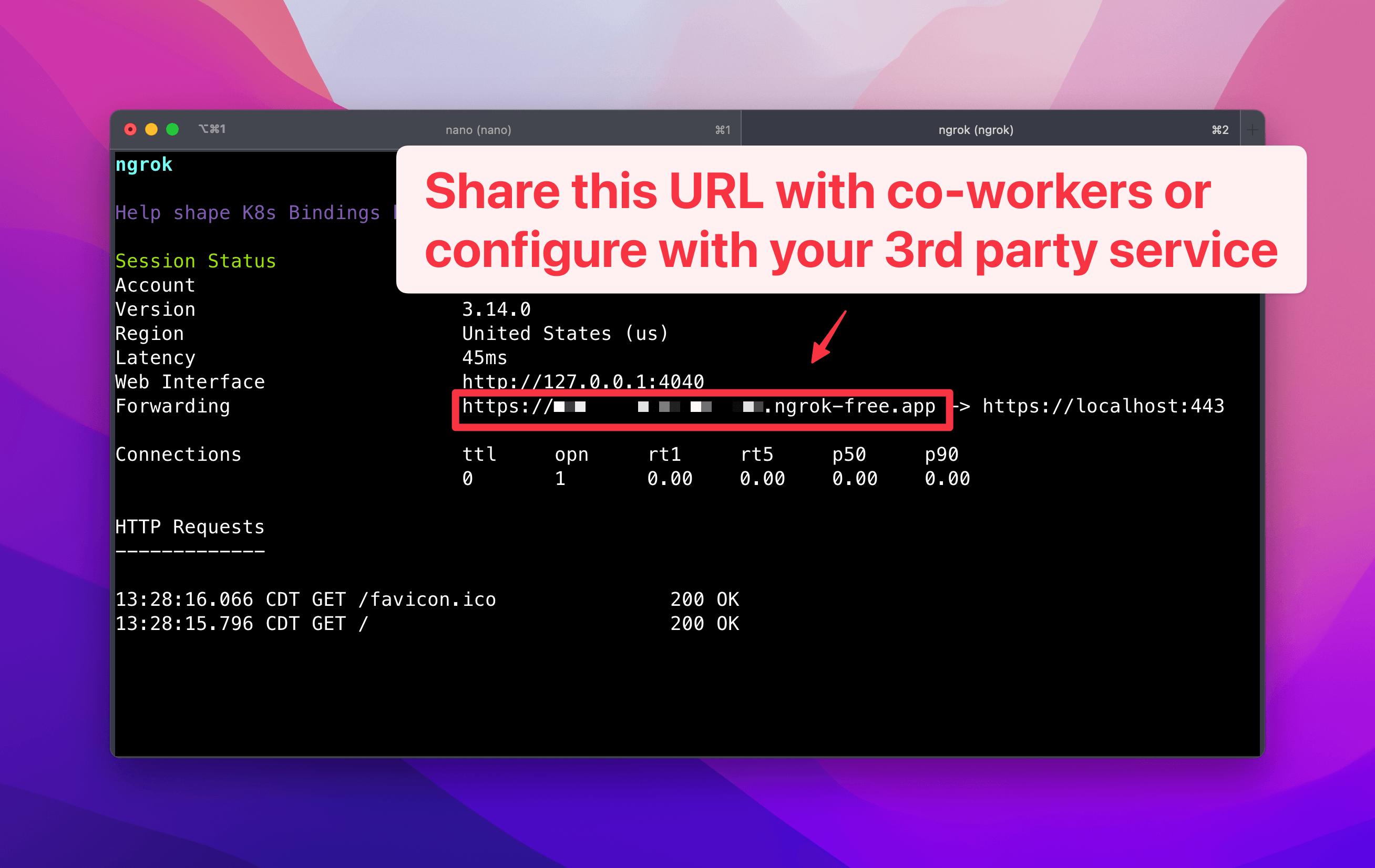
ngrok http https://localhost
You will need to keep the terminal window open to keep the tunnel active, but you can find your public URL in the terminal output. This URL can be shared with anyone to access your local services.
If you'd like to learn about more advanced features of Ngrok, check out their docs.
Customizing the tunnel
By default, Spin Pro supports any *.ngrok-free.app domain that connects. If you need to change this, open up your docker-compose.dev.yml file and update the labels for the php service.
services:
  php:
    labels:
      - "traefik.http.routers.laravel-web.rule=Host(`laravel.dev.test`) || HostRegexp(`^.+\\.ngrok-free\\.app$`)"
You can change the ^.+\\.ngrok-free\\.app$$ expression to match any domain you need to support.
Customizing The Docker Image
This guide will walk you through how to customize your Docker image for your project. You can add additional packages, change the PHP version, or even add additional services to your Docker image.
Migrating from Spin v2 to v3
Although Spin v3 doesn't ship with any breaking changes, there is a new structure for managing your configurations with Spin that you may want to upgrade to take advantage of.