
Install to Windows
Prerequisites
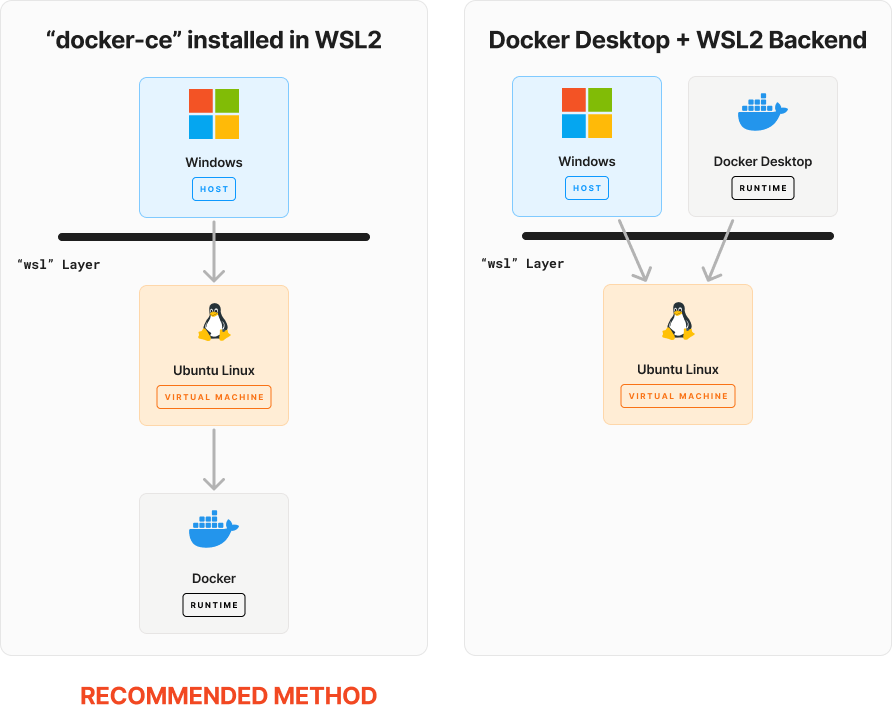
Spin requires a working Windows installation with Docker installed. There are two popular methods to install Docker on Windows:
- Install
docker-ceon Windows Subsystem Linux v2 (WSL2) [recommended] - Install Docker Desktop on Windows with WSL2 backend
Optional software
You may want to consider installing this software to improve your development experience (this is what we use).
- Windows Terminal - This is a great terminal application that will give you tab support for your CLIs.
Install Windows Subsystem Linux v2 (WSL2)
Both options require installing WSL2. We can follow the principles discussed in the official WSL2 documentation and prepare our machine to run "Windows Subsystem Linux v2" (WSL2). We prefer Ubuntu as our distribution. So if you're happy with that recommendation, run this command in PowerShell as administrator to install WSL2.
wsl --install -d ubuntu

After a reboot, you may be prompted to create a username and password for your new Ubuntu installation. This is a separate user from your Windows user.
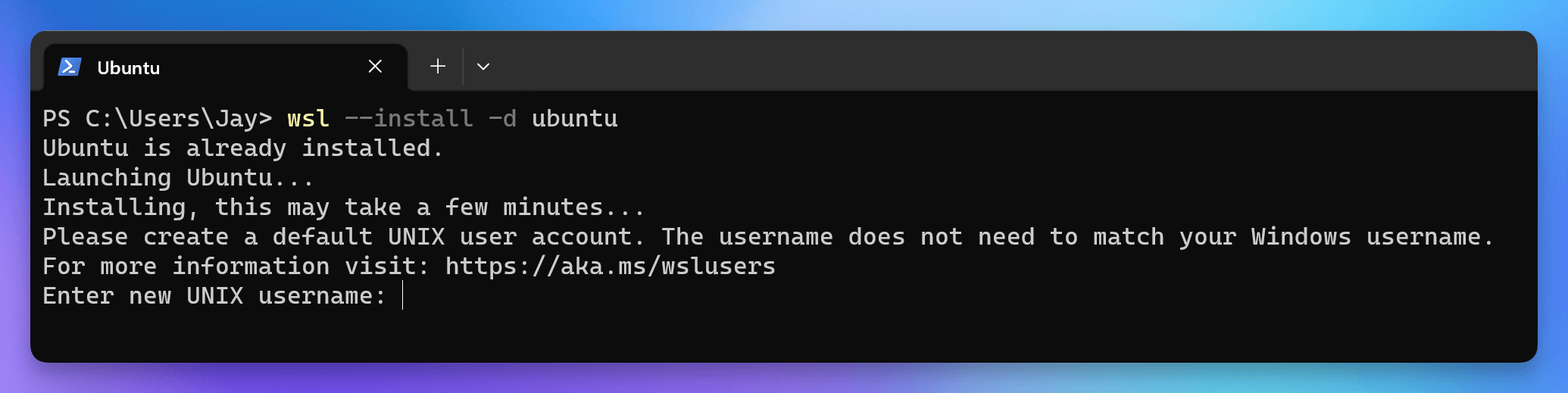
Once configured, you can confirm is working by opening a new PowerShell window and running:
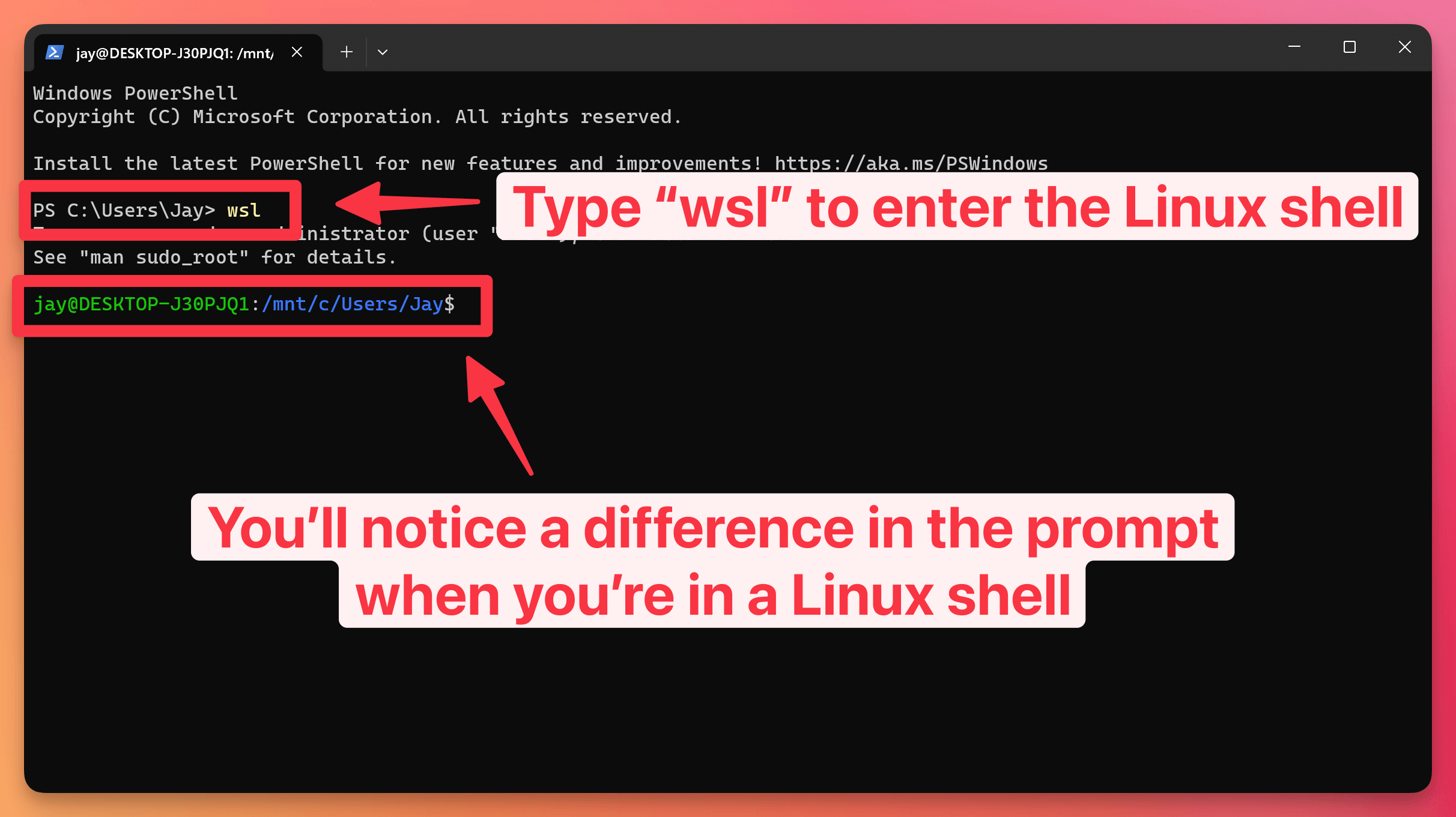
wsl
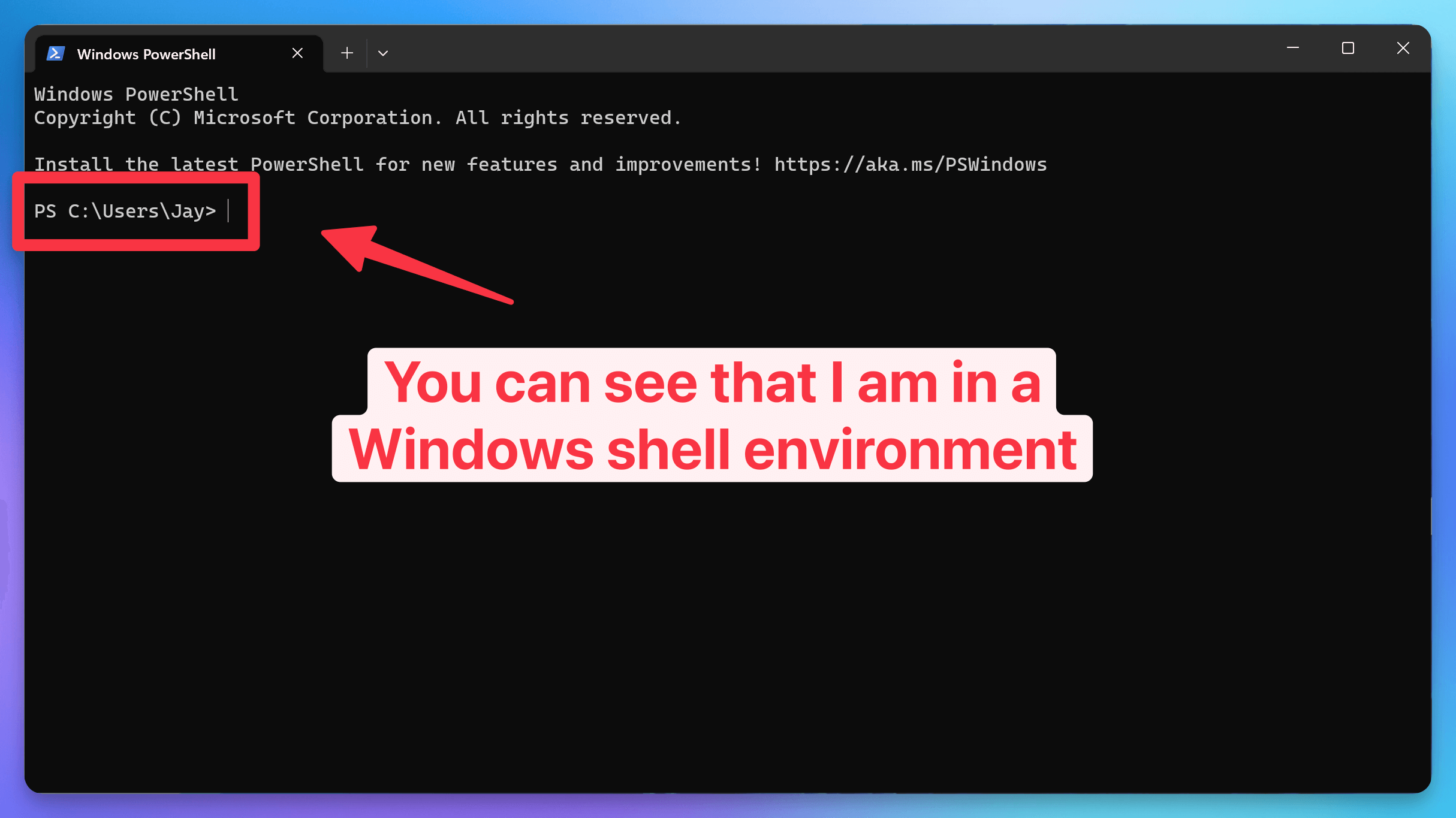
What a Windows shell looks like
You can tell you're in a Windows shell by the prompt when you see the PS prefix and the C:\ prefix.
What a Linux shell looks like
When you're in a Linux shell, you'll see the different colors and things like /mnt/c for your Windows drive.
To go back to your Windows shell, type exit and press enter.
spin from the Linux shell. You'll need to run wsl from a Windows prompt to enter the Linux shell, then you can run spin after you complete the installation.OPTION 1: Install docker-ce within WSL2 (recommended)
Installing docker-ce within Linux allows you to run the open source versions of Docker without installing any proprietary software.
If this option interests you, run wsl to enter a Linux shell and then follow our instructions for installing Spin on Linux.
Install Docker Community Edition to Linux (WSL2) →
OPTION 2: Install Docker Desktop
If you prefer to install Docker Desktop with the WSL2 backend, you'll need to download Docker Desktop from Docker's website.
Installation
Double click the setup file to begin the installation.
Configuration
If prompted, leave the default options checked.
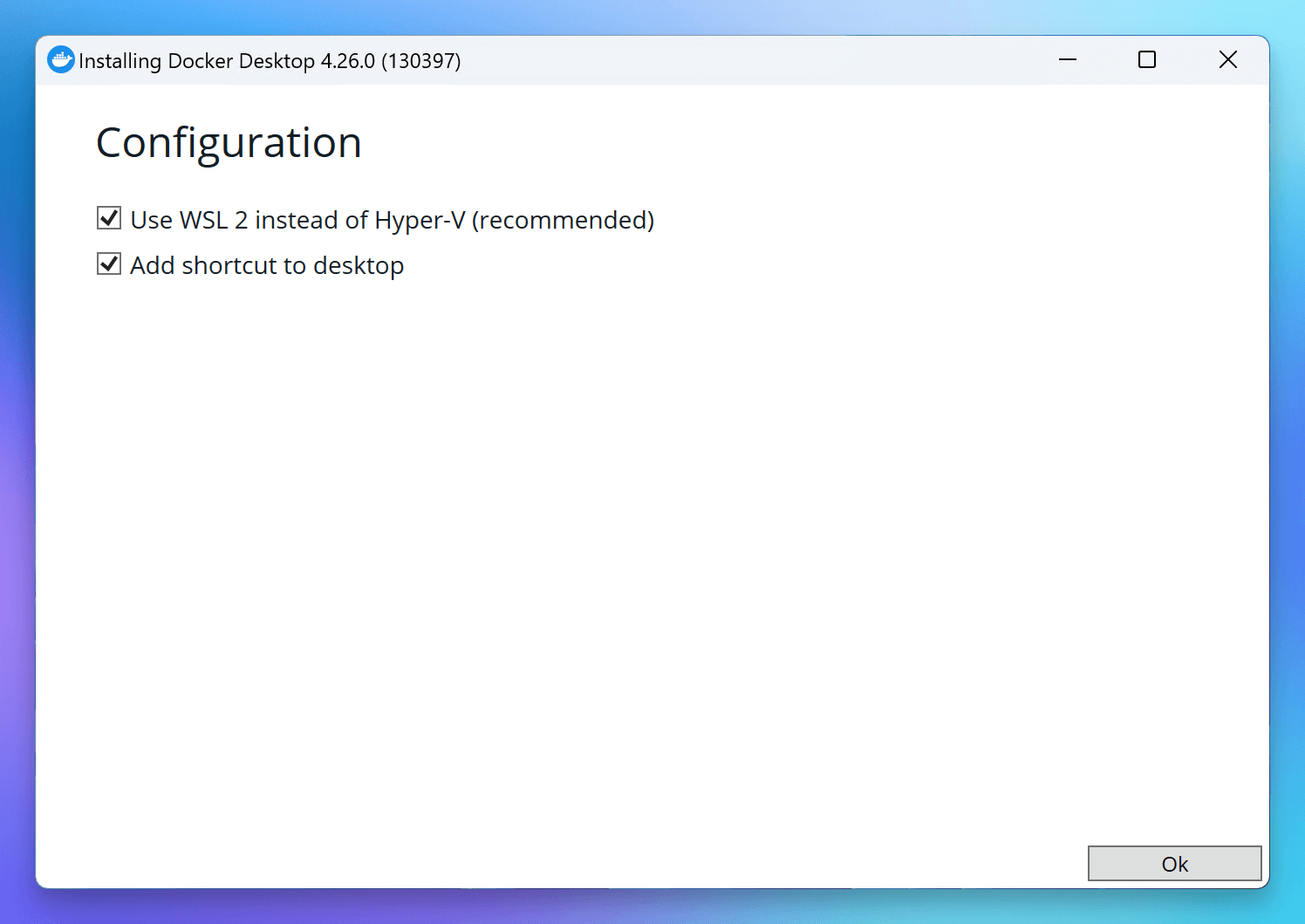
After the installation completes, you may be prompted to reboot your machine. If so, go ahead and do that.
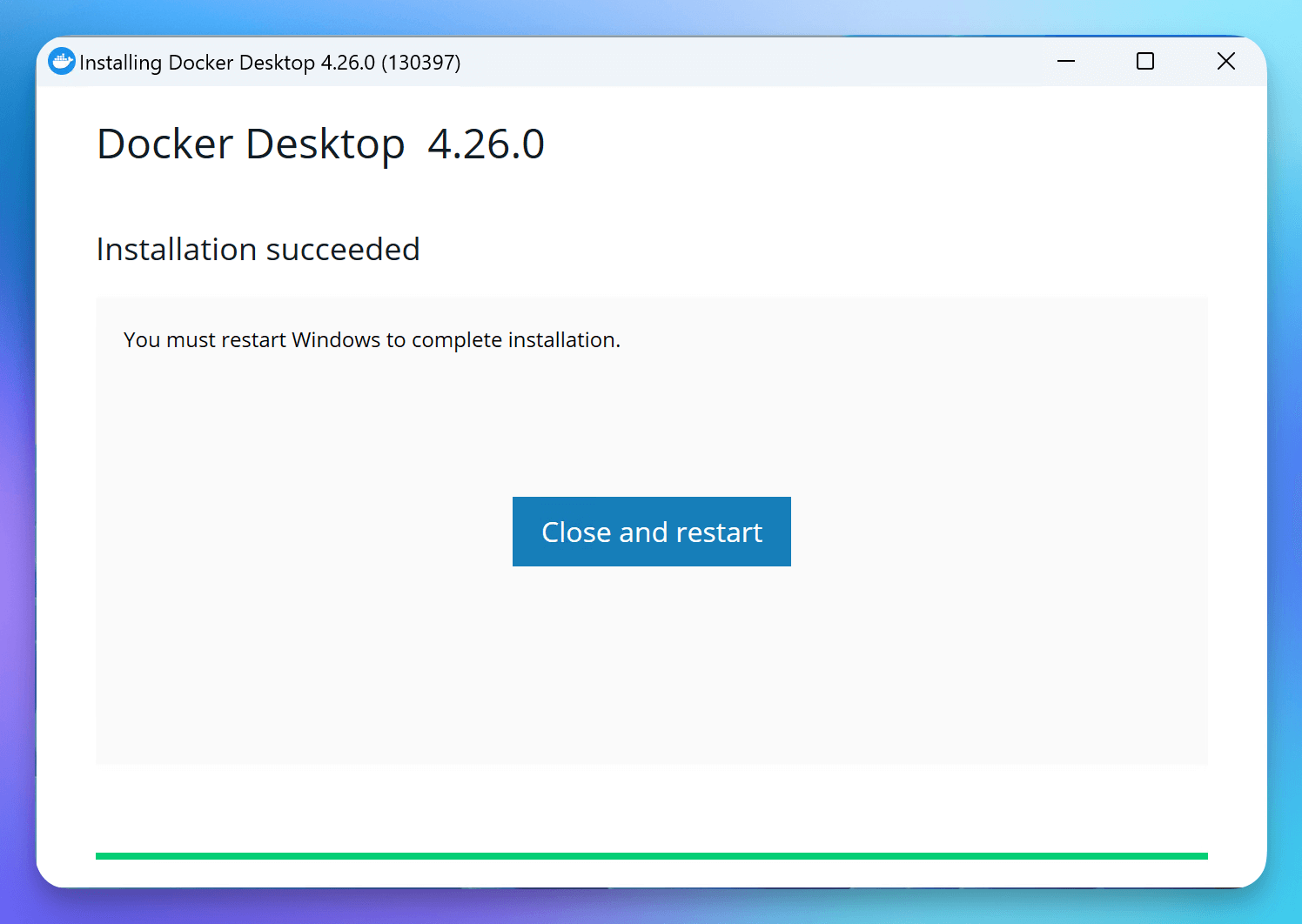
Accept the terms
Once your computer comes back online, click on the Docker Desktop icon. The application will initialize and be sure to accept the terms.
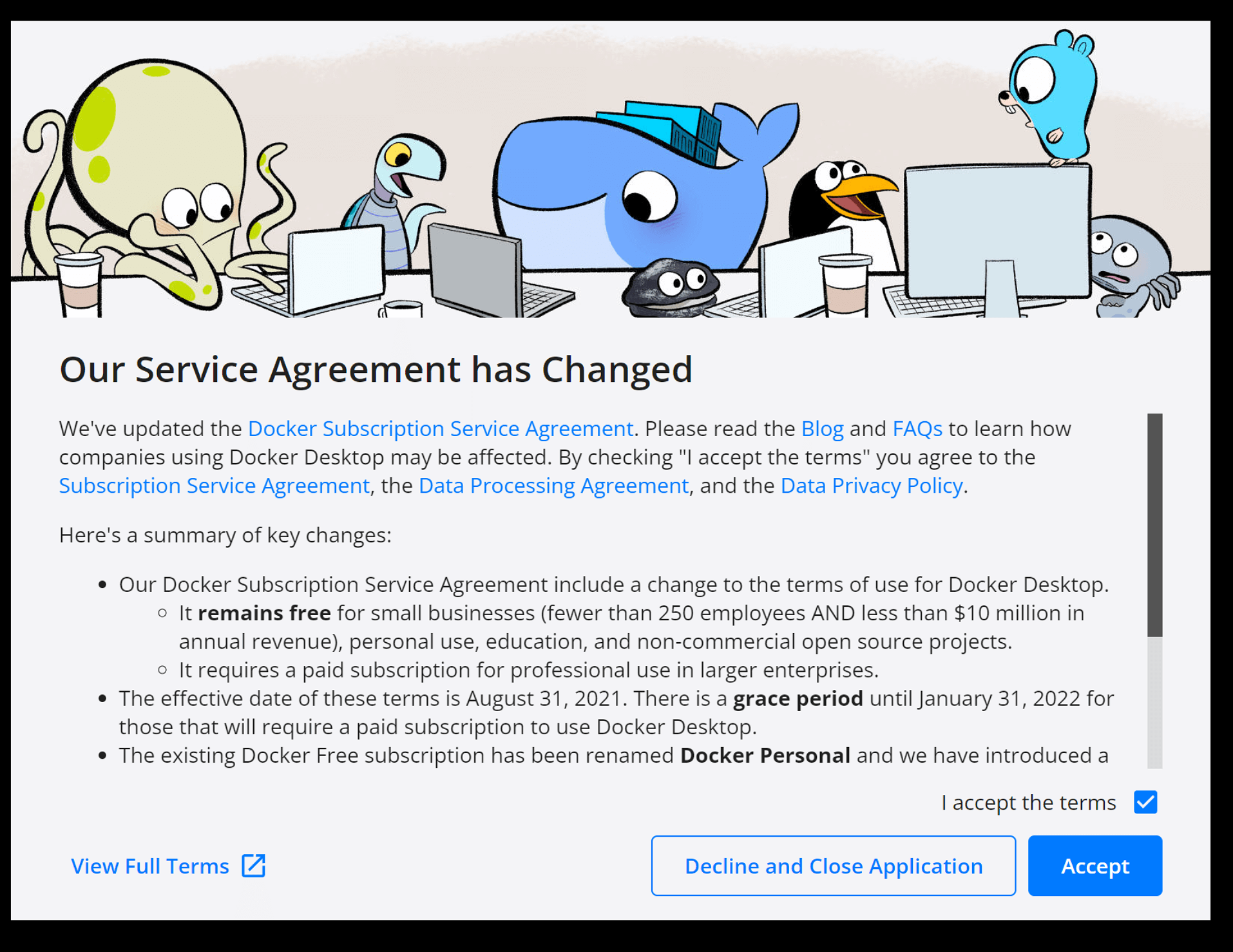
Configuring your Docker Account
You will be prompted to login to your Docker account. If you don't have one, you can create one for free. For most cases, you can use Docker without creating an account.
Verify Docker Desktop
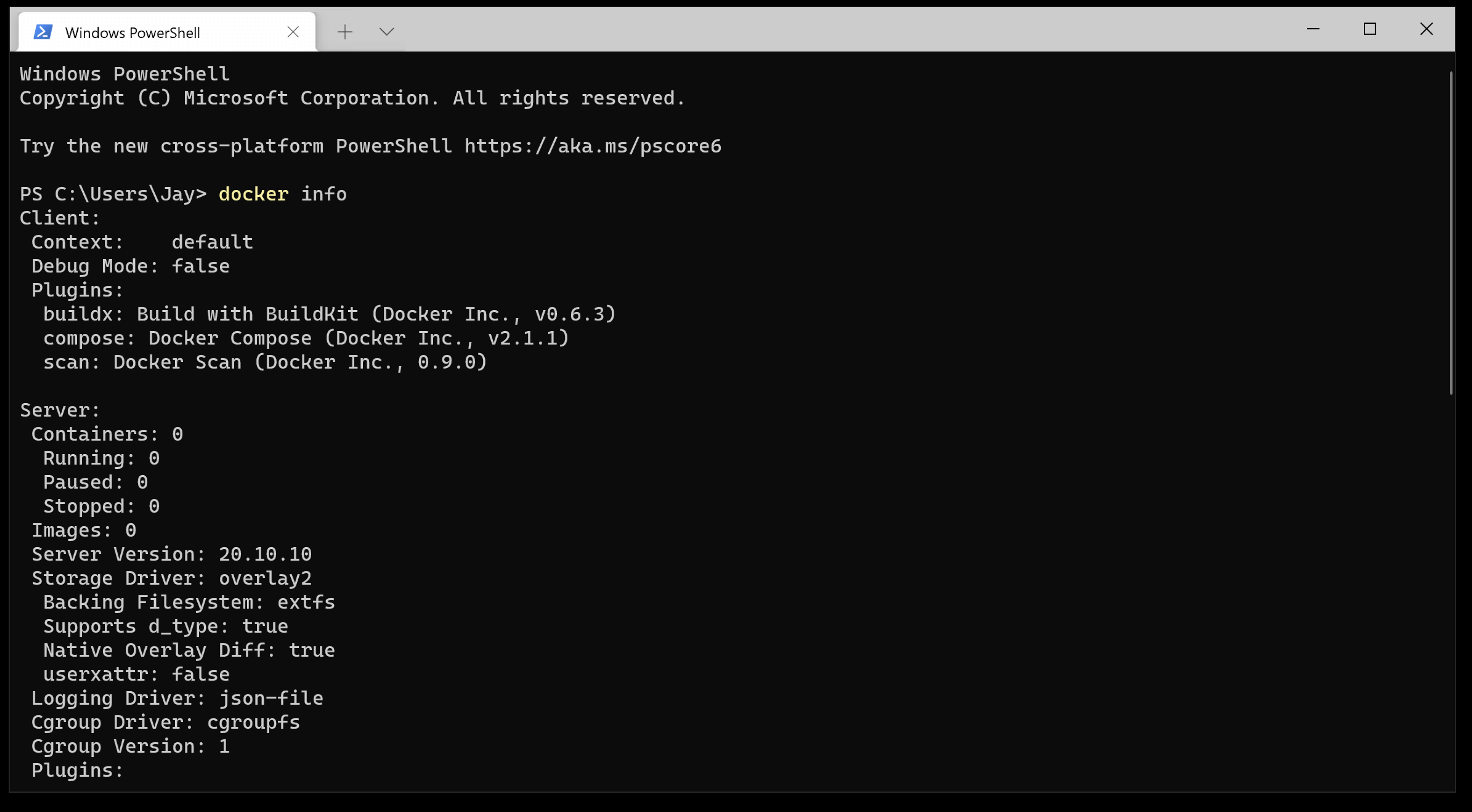
docker info
It should return version information.
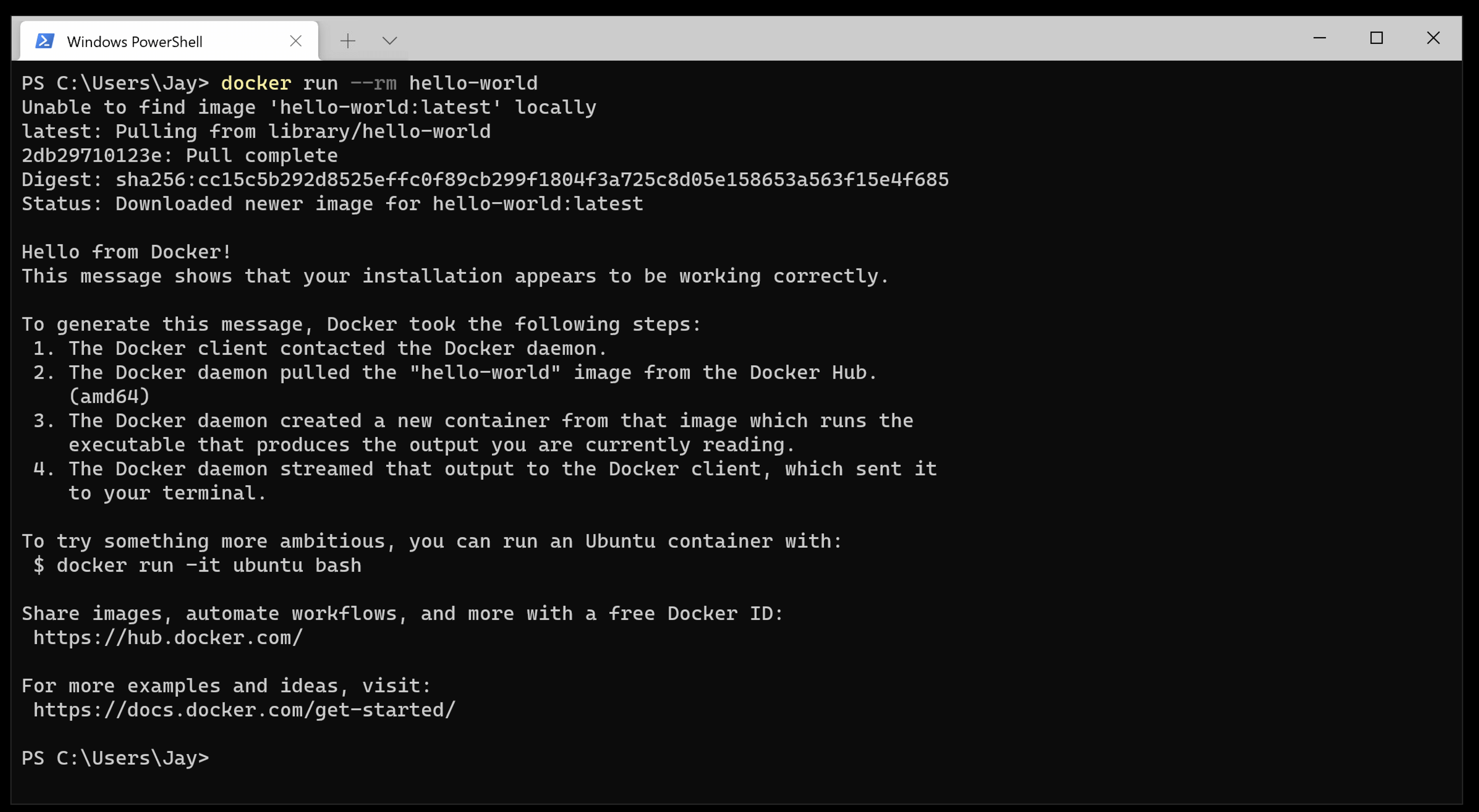
docker run --rm hello-world
It should return something like this.
Download and install spin into WSL2
wsl to enter the Linux shell before running the following commands.Run the installer with this simple command in your terminal
bash -c "$(curl -fsSL https://raw.githubusercontent.com/serversideup/spin/main/tools/install.sh)"
The above script will install spin at the user level in ~/.spin, using less than 300KB of storage.
Configuring your PATH variable manually
If you did not add spin to your PATH during the installation, you can manually add it to your PATH by adding this to your shell profile:
echo $0 in your terminal to figure out which shell you are using.# Add this to `~/.zshrc` or `~/.bash_profile`
export PATH="$HOME/.spin/bin:$PATH"
In order to apply the changes to your current terminal session, you will need to run the source command.
# If you're using ZSH
source ~/.zshrc

# If you're using Bash
source ~/.bash_profile
Validate it's working
You should be able to run this and get a result 🥳
spin version
Install to macOS
Spin easily runs on any macOS machine that runs Docker Desktop. Getting started is as simple as installing Docker Desktop, then running a single command to install `spin`.
Install to Linux
Spin is able to run on any Linux machine that supports Docker. Getting started is as simple as installing Docker, then running a single command to install `spin`.