
Laravel Boost
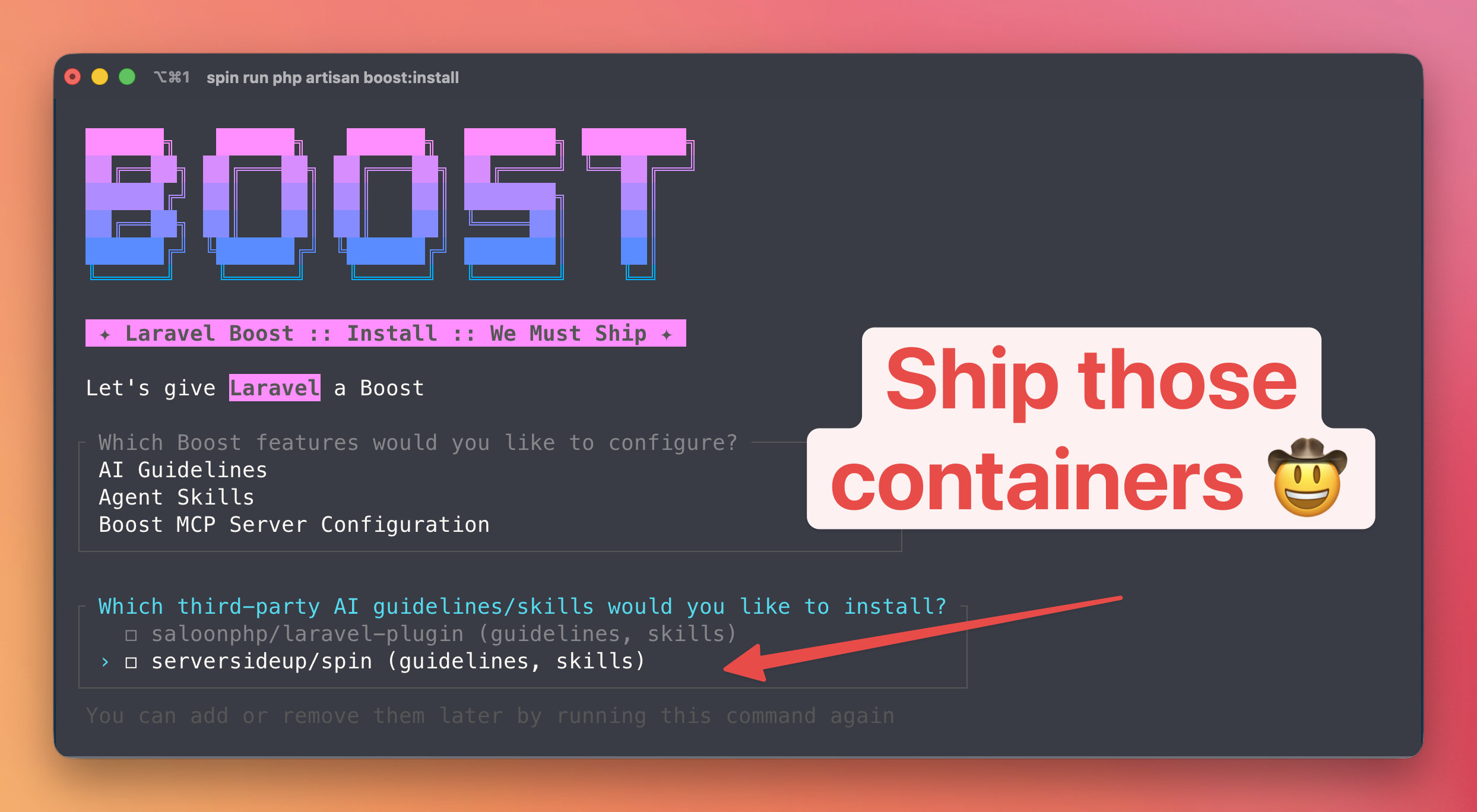
What is Laravel Boost?
v3.2.0 or higher to use Laravel Boost. You can upgrade by running spin run php composer update serversideup/spin.Laravel Boost accelerates AI-assisted development by providing the essential guidelines and agent skills that help AI agents write high-quality Laravel applications. It includes a built-in MCP (Model Context Protocol) server that gives your AI coding agent access to your application's structure, database, routes, and all of Laravel's documentation.
Because Spin runs your Laravel application inside Docker containers, the MCP server needs to run inside the container where PHP and Artisan are available. This guide walks you through configuring and installing Boost with Spin.
How it works
Laravel Boost's MCP server uses stdio (standard input/output) as its transport. Your AI coding tool communicates with the MCP server by sending and receiving JSON-RPC data through the process's stdin and stdout streams.
Since Spin runs PHP inside Docker, we need to bridge your host machine (where the IDE runs) to the container (where PHP and Artisan live). Spin ships a lightweight bridge script called spin-mcp-wait.sh that handles this automatically. It:
- Runs the MCP command inside the container using
spin run -T(the-Tflag disables pseudo-TTY allocation, which would interfere with the raw stdio data) - Filters Docker's startup noise from stdout so only clean JSON-RPC messages reach the IDE
- Retries every few seconds until Docker is available — necessary because IDEs like Cursor start MCP servers on launch, before Docker Desktop may be ready
The script is installed automatically as a binary when you install Spin via Composer or NPM — no manual setup required.
Preparing the .env file
Before installing Boost, add these values to your .env file so Boost generates the correct MCP configuration:
BOOST_PHP_EXECUTABLE_PATH="./vendor/bin/spin-mcp-wait.sh ./vendor/bin/spin run -T php php"
BOOST_COMPOSER_EXECUTABLE_PATH="./vendor/bin/spin run php composer"
BOOST_NPM_EXECUTABLE_PATH="./vendor/bin/spin run node npm"
Why each is needed:
BOOST_PHP_EXECUTABLE_PATH— Tells Boost how to start the MCP server. Without this, Boost will try to run barephpon the host, which doesn't exist since PHP runs inside Docker.BOOST_COMPOSER_EXECUTABLE_PATH— Tells Boost's AI guidelines to usespin run php composerinstead of barecomposerwhen generating instructions for AI agents.BOOST_NPM_EXECUTABLE_PATH— Same as above, but for npm commands.
Installation
Now that the .env file is ready, install Laravel Boost:
spin run php composer require laravel/boost --dev
"laravel/boost": "^2.2")Next, install the MCP server and coding guidelines. When prompted, select the AI agents you plan to use (Cursor, Claude Code, etc.):
spin run php php artisan boost:install
The boost:install command generates the relevant guideline and skill files for the coding agents you selected. Feel free to add the generated configuration files to your .gitignore since they are automatically regenerated when running boost:install or boost:update.
For example, we include this in our .gitignore file:
# Boost-generated (regenerated by boost:update)
AGENTS.md
CLAUDE.md
boost.json
.mcp.json
.cursor/mcp.json
.cursor/rules/laravel-boost.mdc
.cursor/skills/
.agents/
.codex/
.claude/
opencode.json
Learn More
Laravel Boost offers much more than what's covered here, including custom AI guidelines, agent skills, and a powerful documentation API. For the full reference, visit the official Laravel Boost documentation.
Migrating from Spin v2 to v3
Although Spin v3 doesn't ship with any breaking changes, there is a new structure for managing your configurations with Spin that you may want to upgrade to take advantage of.
Laravel Horizon
Laravel Horizon is a beautiful dashboard and configuration system for your Laravel queues. It provides dashboard and code-driven configuration for your Laravel powered Redis queues.